Teuton Systems PC
Computers that obey you – not Microsoft
Linux computers with KDE Plasma feel familiar from the very first boot — but without forced updates, data collection, or licensing fees. Pre-installed and ready to use straight out of the box.

- Built and configured in Hedemora
- At least 1 year of hardware warranty
- Full disk encryption and VPN included
The difference
What makes Linux different from Windows and macOS?
Windows collects telemetry, forces updates, and requires licenses. macOS locks you into expensive Apple hardware. Linux gives you the same features — but you decide.
Windows / macOS
- Telemetry sent to Microsoft/Apple
- Mandatory updates — restarts when the system deems it appropriate
- Licence fees and subscriptions (Office 365, iCloud+)
- Advertising and "suggestions" built into the operating system
- Difficult to verify what the software actually does
Linux with KDE Plasma
- No telemetry or hidden data collection
- You decide when and if you update
- No licences, no subscriptions — everything is free
- Clean desktop environment without advertising and bloatware
- 100 % open source — reviewable by anyone
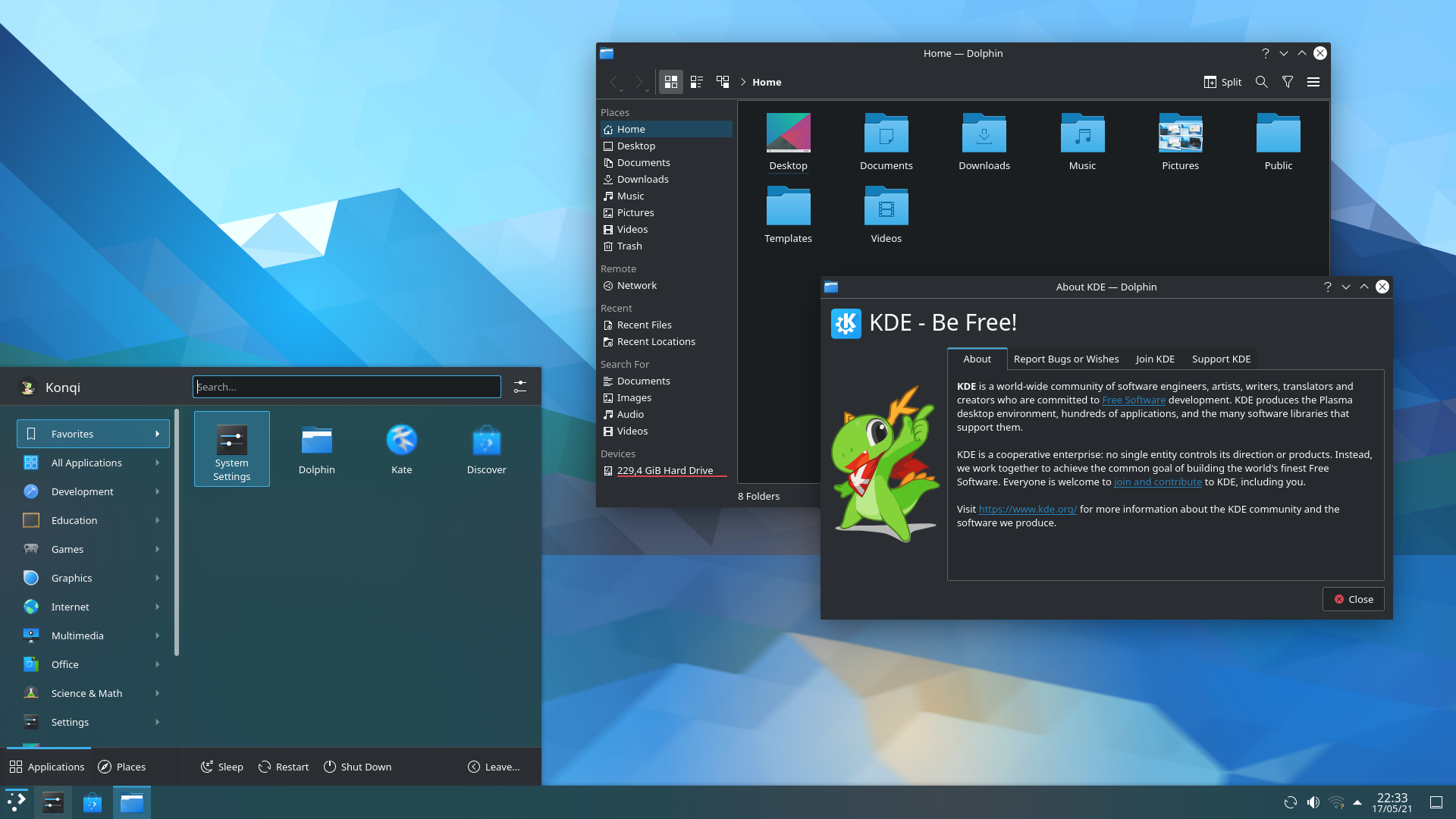
The same things work: Browse, email, write documents, play games, watch films and listen to music. KDE Plasma looks and functions like Windows — you’ll hardly notice the difference in everyday use.
Concrete differences in everyday life
- licence fee for the operating system and office software. Windows + Office costs 2,000–4,000 SEK.
- $0
- licence fee for the operating system and office software. Windows + Office costs 2,000–4,000 SEK.
- From button press to desktop. No waiting for updates on startup.
- ~15 sec
- From button press to desktop. No waiting for updates on startup.
- Typical lifespan for the hardware. Linux doesn't slow down over time and doesn't require a new computer to continue being updated.
- 10+ years
- Typical lifespan for the hardware. Linux doesn't slow down over time and doesn't require a new computer to continue being updated.
Boot time and lifespan are our own measurements on the computers we deliver. The license cost refers to Microsoft's list price for Windows 11 Home and Office Home 2024 (July 2026).
Model
Choose your Linux computer
desktop or portable? All come with Linux and KDE Plasma — a desktop that resembles Windows but gives you full control.
Desktops
Hand-built in our premises — easy to upgrade
- TS Desktop Mini Slim Refurbishment Lowest price — compact and quiet for everyday browsing 406 €
- TS Desktop Mini Small as a book — full capacity for everyday life 627 €
- TS Desktop Office Integrated model for offices and homes 657 €
- TS Desktop Workstation Processing power for image editing, video and more demanding work 893 €
- TS Desktop Gamer Play the latest games — Windows on a separate disk included 1 704 €
Portable — TS Nomad
Based on Lenovo, known for durability and good keyboards
- Prices include VAT
- Tracked shipping
- 14-day returns · 1-year minimum warranty
- Swish, card, Bitcoin — or pay in instalments with Klarna
Would you like extra security or to save money with a stripped-down configuration?
Read about the Basic Linux vs. Teuton Systems concept
Do you already have a computer? We are installing Linux on it — good for both the environment and your wallet.
What you get
Ready to use — encryption, VPN, and software included
You pay for the hardware, guaranteed compatibility, professional configuration and support. Everything works right out of the box – Wi-Fi, sound, graphics and printers.
In the cardboard box
- Complete computer (desktop or laptop)
- Power cable/charger
- Handbook in Swedish
- Passwords and account information
Included in the service
- Linux + KDE Plasma pre-installed
- Full disc encryption enabled
- VPN tunnel configured
- Secure apps and office software (LibreOffice)
- Swedish support for questions
Every computer is built and tested by hand in Hedemora. Delivery within 5–10 days – or pick up on site.
Why Teuton?
Six reasons to choose a TS computer
Encrypted from the start
All files are automatically protected. In case of theft, the drive is unreadable without your password.
Feels like Windows
KDE Plasma has a start menu, taskbar, and file manager exactly where you'd expect them. No learning curve required.
No mandatory updates
You decide when and if you update. The computer never restarts itself in the middle of a task.
VPN included
Your internet traffic is encrypted — your internet provider won't see what you're doing. Pre-installed and ready.
No licence fees
Everything is open source. No hidden costs, subscriptions or compulsion to pay for Office.
Support in Swedish
Call or email us. We'll help you get started without any technical jargon — and we'll be here if you get stuck.
We use the same open source as we sell
Open source is our entire philosophy — in the workshop, in production, and in the office. We use free tools ourselves and support the projects and the community behind them, because freer technology benefits us all.
Frequently asked questions
Everything you wonder - answered honestly
From BankID, Office and games to how you install programs and where your files end up.
Before you buy - common considerations
Is Linux difficult to use?
No, it isn't. Modern Linux systems with KDE Plasma are as easy to use as Windows for everyday tasks. The desktop has a familiar layout with a taskbar at the bottom, start menu, system tray and a file manager (Dolphin) that is very similar to Windows Explorer. Browsing, email, documents, films and music work just like you're used to - you'll hardly notice the difference in everyday life. And we're here if you get stuck.
Image example
Do I have to use the terminal (command prompt)?
No, not for everyday use. KDE Plasma has graphical tools for everything you need in everyday life: installing applications via Discover (an app store), updating the system, connecting to Wi-Fi, configuring printers and managing files. The terminal is there as a powerful tool for those who want it, but you never have to open it. Think of it like the Windows command prompt - it's there, but most Windows users have never used it.
Does BankID work on Linux?
Yes, it does. For those who have Mobile BankID, it works exactly the same regardless of which operating system the computer is running, as everything is handled by the browser and a smartphone with the BankID app installed. You log in to the bank, the Swedish Tax Agency, 1177 or other e-services via the browser on your Linux computer and verify by scanning a QR code with your phone. In fact, banking on Linux can be considered safer due to the lower risk of malware and keyloggers. Unfortunately, BankID stopped its native Linux support back in 2014, so if you need the BankID application on your computer, you will need to have a separate Windows installation, either on a separate disc/partition (like on Desktop Gamer) or on a virtual machine from within Linux.
Can I use Microsoft Office?
There are several good options. LibreOffice comes pre-installed and opens Word, Excel and PowerPoint files. For the vast majority of documents, it works excellently, although complex formatting can sometimes differ marginally. Microsoft Office Online (via the browser) provides access to Word, Excel and PowerPoint for free via Microsoft account and looks just like the desktop version. Google Docs, Sheets and Slides are also available for those who prefer it. For most home users, these options cover all needs.
Can I run my Windows programmes?
Specific Windows software cannot always be run directly, but tools such as Wine and CrossOver can run many Windows programmes in Linux. Browser-based services (webmail, social media, banking, streaming) work identically regardless of the operating system. Most everyday applications also have excellent Linux alternatives. Examples of common ones include GIMP/Krita (image editing), Kdenlive (video editing), Thunderbird (email) and VLC (media player) - all free.
Can I play computer games?
Yes, gaming on Linux has improved dramatically thanks to Valve's Proton/Steam Play and the success of Steam Deck (running Linux). Over 90 % of the most popular Steam games now work on Linux via Proton, and any difference in performance is usually within 5-10 % compared to Windows, sometimes for the better. Single player and co-op games generally work fine. The important limitation: some multiplayer games with kernel-level anti-cheat systems (e.g. Valorant, Fortnite) do not work on Linux. The ProtonDB.com website provides detailed information on which games work. Desktop Gamer also comes with Windows on a separate disc for those games that do not yet support Linux. Guide: Playing in Linux →
Is my printer and scanner working?
Printer compatibility has significantly improved. HP printers have the best Linux support and often work out of the box. Brother also has good support with downloadable drivers. Modern "driverless" printers that use IPP Everywhere or AirPrint generally work well. Canon and Epson can be more hit-or-miss. For scanning, a USB connection works better than wireless. A pre-configured computer comes with printer drivers pre-installed – you connect the printer and it should be found automatically. Please contact us before purchasing if you are unsure about your printer model.
Do Netflix, Spotify and Swedish streaming services work?
Yes, it does. Netflix, Disney+, Amazon Prime Video, HBO Max and Spotify all work in the browser. Spotify also has a dedicated Linux app. SVT Play, TV4 Play and other Swedish streaming services are fully HTML5-based and work seamlessly in Firefox or Chrome. A little tip: Netflix can be limited to 720p in Firefox but works in 1080p in Chrome.
Do Swedish government services (Skatteverket, 1177, Försäkringskassan) work?
Yes, they are. All these services are web-based and work in standard browsers. Login is via BankID, read more about this in the corresponding question. The Swedish Tax Agency's e-declaration, 1177 Vårdguiden and all the Swedish Social Insurance Agency's e-services work without problems from a Linux computer.
Can I go back to Windows if I am not satisfied?
Yes, absolutely. A hard drive can always be reinstalled with Windows. There is nothing irreversible about using Linux - your files can be copied to an external hard drive and you can install Windows at any time.
Why pay for a Linux computer when Linux is free?
You pay for the hardware, guaranteed compatibility, professional configuration, support and peace of mind. A pre-configured Linux computer means everything works out of the box - Wi-Fi, audio, graphics, printers - without you having to troubleshoot drivers yourself. It also includes pre-installed software, VPN, disc encryption and access to Swedish customer service. Think of it as the difference between buying a pre-built bike versus buying the parts and assembling it yourself.
Can I get Linux on my old computer instead?
Yes. We offer PC conversion as a service - you send your computer to us and get it back fully configured. Good for the environment and your wallet.
After the purchase - getting started
How do I install programmes?
KDE Plasma has Discover – a graphical app store that works much like Google Play or the App Store. You search for the application you want, click "Install," and it's done. Discover manages applications from the system's official package repositories as well as Flatpak (via Flathub), which offers thousands of applications. You never need to download installation files from websites. This is actually safer than the Windows model, as all applications come from verified sources.
What are Flatpak, Snap and AppImage?
These are different ways of packaging and distributing applications in Linux. Flatpak is the most common format and integrates directly into Discover - it packages applications in isolated environments (sandboxes) for extra security. AppImage is a portable file that can be run directly without installation. Snap is Ubuntu's format and works similar to Flatpak. In practice, you only need to use Discover - it handles the formats for you automatically without you having to think about it.
How do I update the system?
I Discover, there's an "Updates" tab that shows available updates for the entire system and all installed programs at once – unlike Windows, where each program is updated separately. You click "Update all" when it suits you. No forced restarts, no "Please wait while we configure updates" screens, and no interruptions in the middle of your work. Most updates don't even require a restart. It's up to you when and if updates are applied.
Where are my files? The file system looks different.
Your personal files are located in the Home folder, which contains subfolders such as Documents, Pictures, Downloads, and Music – much like in Windows. In the Dolphin file manager, you'll see "Home" in the left-hand sidebar, and USB devices and external hard drives will appear automatically under "Devices" in the same sidebar. Linux does not use drive letters like C: and D:, but in practice, you will never need to think about the underlying directory structure.
Which Linux programmes are equivalent to my regular Windows programmes?
Here are the most common equivalents: Microsoft Office → LibreOffice (or Microsoft Office Online in the browser). Photoshop → GIMP. Outlook → Thunderbird. Windows Media Player → VLC Media Player. Notepad → Kate. Paint → Chalk. Movie Maker → Kdenlive or OpenShot. Explorer → Dolphin (KDE's file manager, often considered better than Explorer). All these programmes are free and available through Discover.
How do I connect my phone to my computer?
USB file transfer works in the same way as you are used to. In addition, KDE Plasma has a unique advantage: KDE Connect. It's a built-in feature that wirelessly connects your Android phone to your computer, provided your computer has Wi-Fi or Bluetooth. You can transfer files, synchronise notifications, share clipboards, control the media player remotely and even reply to SMS from your computer. Just install the KDE Connect app from Google Play on your phone.
How do I back up my files?
Two types of backup are recommended. Timeshift creates system restore points - if something goes wrong, you can restore the system to a previous working state (similar to System Restore in Windows). Déjà Dup or Back In Time copies your personal files (documents, photos, music) to an external hard drive or network storage. The best combination is Timeshift for the system and Déjà Dup for personal files.
Where can I get help if something doesn't work?
The big advantage of a pre-configured computer from us is that you have access to Swedish customer support - you can call or email instead of searching forums. Beyond that, there are plenty of resources: the distribution's official forums and wiki, Reddit groups like r/linux4noobs, KDE Community forums for Plasma-specific questions, and Swedish communities like the SweClockers Linux forums.
Privacy and security
Is Linux really safer than Windows?
Yes, for several structural reasons. Linux uses strict separation of user and administrator rights - programs cannot make system changes without your explicit password authorisation. Software is installed from verified package repositories instead of being downloaded from random websites (the most common source of malware in Windows). Open source means that thousands of developers review the code continuously. In addition, Linux's low market share on the desktop makes it an unprofitable target for malware. Linux also doesn't have espionage built into the system (see next question). However, no platform is invulnerable - your browser and online habits are still the most important factors.
Does Linux spy on me like Windows does?
No. Windows collects mandatory "diagnostic data" – hardware information, system events, error reports, and usage patterns – which cannot be completely disabled. With Windows 11, telemetry has been further expanded with AI features and Copilot. Most Linux distributions collect zero telemetry data by default. As the code is open source, hidden tracking features would be immediately discovered and exposed by the community. Important to note: the Linux operating system itself does not track you, but applications you install (e.g. Chrome, Discord) may still collect data – which is why we recommend privacy-friendly alternatives like Brave.
Do I need antivirus software?
No, for home use, dedicated antivirus software is not required. Linux architecture with permission system (files are not executable by default), centralised package repositories and low incidence of malware makes antivirus software unnecessary for desktop users. Instead, the most important security measures are to keep the system up-to-date, only install programmes from trusted sources (Discover/Flathub), use strong passwords and be careful with browser downloads.
What is disc encryption and why do I need it?
Disk Encryption (via LUKS) encrypts the entire contents of your hard drive with AES-256 encryption - the same standard used by banks and governments. In practical terms, this means that if your computer is stolen or lost, no one can access your files, photos, documents or passwords without your encryption password. With modern processors, performance is barely noticeably affected. Without encryption, anyone who gains physical access to your hard drive can read everything - no matter how strong your login password is.
What happens if I forget my encryption password?
Then, unfortunately, it's game over. If you forget your encryption password and don't have a backup, your data is permanently inaccessible. There's no backdoor, no "forgot password" option, and no customer service that can unlock the drive – that's the whole point of encryption. However, LUKS supports up to 32 password slots, so you can add a backup password for extra security. Our advice: choose a strong but memorable passphrase (preferably four–five random words) and store the password securely in a separate location.
Do I need a VPN?
Linux protects your computer, but not your network traffic. Without a VPN, your ISP can see which websites you visit. A VPN encrypts all internet traffic between your computer and the VPN server, so neither your ISP nor anyone on the same network can see what you're doing online. However, your VPN provider may be able to, so it might be worth considering which of them you trust the most (or least). VPNs are especially important on public Wi-Fi networks (cafés, airports, hotels). Our computers come with VPN pre-installed - you just need to switch it on.
How does Linux handle security updates compared to Windows?
You decide when to install updates - no forced restarts in the middle of a presentation or overnight. The update manager notifies you when new updates are available, and you choose when to install them. Most updates don't even require a reboot. The entire system and all installed applications are updated through a single update manager, instead of each application updating itself as in Windows. Security updates are released quickly by the open source community - often faster than for proprietary systems.
Good to know
Transferring data from your old Windows computer
Linux can read Windows formatted storage devices (NTFS) without problems. The easiest migration method is to copy the files to a USB stick or external hard drive. Browser bookmarks and passwords are automatically synchronised if you use the same browser account (e.g. Firefox Sync or your Google account).
KDE Plasma is more customisable than any other desktop
KDE Plasma is the most customisable Linux desktop. You can change the theme, icons, colours, fonts, window decorations, panel layouts and desktop widgets - all through System Preferences. There are even themes that make KDE Plasma look exactly like Windows 10 or Windows 11. But the important thing for beginners: you don't need to customise anything at all - the default setting works just fine and is already familiar to Windows users.
KRunner - a hidden superpower
Press Alt+Space to open KRunner, a universal search box. From there, you can launch programs, search for files, do mathematical calculations, convert units, search the web, and much more. It's like a faster and more powerful version of the Windows search bar. A feature that few new users know about but which is quickly becoming indispensable in everyday life.
Do not run commands you do not understand
If you're seeking help online and someone suggests you type a command into the terminal – don't run it unless you understand what it does, especially if it starts with "sudo" (which grants administrator privileges). Malicious commands appear in forums and comment sections, just like with other operating systems. If in doubt, contact our customer service instead.
Graphics cards: AMD performs better than NVIDIA on Linux
AMD and Intel graphics cards have excellent support with open drivers built directly into the Linux kernel. NVIDIA requires proprietary drivers which work but have historically caused more problems. A pre-configured computer comes with the correct drivers already installed, but it's good to know for future upgrades.
Windows 10 has come to an end - Linux is the alternative
With Windows 10 support having ended and Windows 11"s even more invasive behaviour and hardware requirements excluding many older computers, interest in Linux has increased significantly. Linux works excellently on older hardware and KDE Plasma is surprisingly resource-efficient despite its range of features. A computer that is "too old" for Windows 11 can be given new life with Linux – without compromising on either performance or security.
Ready for a computer that obeys you?
Order today – we build and configure your computer by hand and ship it within 5-10 days. 14-day right of withdrawal and at least a 1-year hardware warranty.
 Swedish
  English