
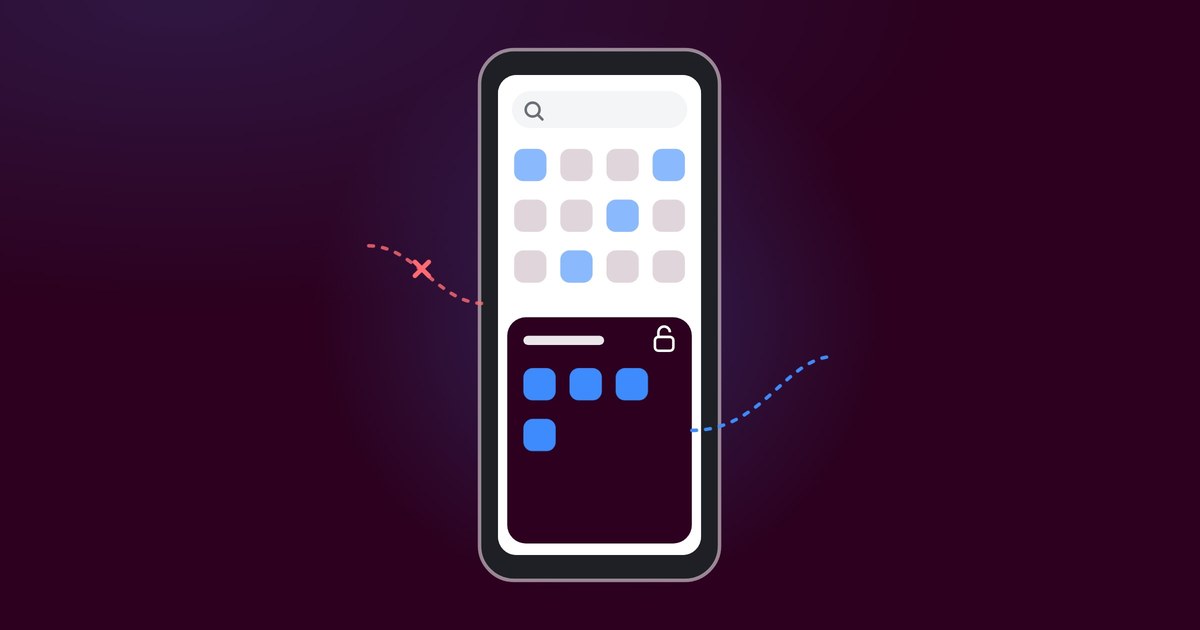
A locked mobile phone protects against anyone finding it on the bus. But once the phone is unlocked, everything is open: the banking app, the medical records, the messages to the lawyer. With Private Space, you can put the most sensitive information behind a separate lock, in a part of the phone that isn’t even visible when it’s closed. Or you can flip it over and make the space a gateway for the apps you don’t trust.
What is Private Space?
Private Space is a separate part of the phone with its own apps, its own files and its own lock. The feature arrived with Android 15, and on GrapheneOS, the operating system on the Matrix phone, it is fully supported.
The space appears as its own section at the bottom of the app list. When it is unlocked, you use the apps as usual. When it is locked, the apps are stopped, their notifications go quiet and they disappear from the recent apps. You can also choose to hide the space completely, so that it can only be found by searching for it.
Why it is more than a folder with a password
Many phones offer to hide apps or lock them with a code. That is a shell on the outside. Private Space is instead a separate user running inside your normal one, with the same isolation as between two different people on the same phone.
That means three things. The apps in the space are separate copies with their own data, so the same app can exist both outside and inside without sharing anything. Apps outside cannot read files, contacts or calendars in the space, and the apps inside cannot read yours. And the space has its own encryption keys. On GrapheneOS it can rest fully locked, with its keys gone from memory, while the rest of the phone is used as normal.
Two ways to use it
Since the isolation applies on both sides, you can use Private Space in two ways. Both are right. What matters is what you want to protect yourself against.
A safe for the most sensitive things
The usual way. Banks, healthcare and private messaging move into the space, and the rest of the phone is as usual. If someone borrows your phone, or looks over your shoulder when you show a picture, the most sensitive stuff isn’t even in the app list. That suits you best, as you’re usually worried about the people around you.
A bridge for what you don't trust
The Matrix phone is built the other way around. It is basically delivered secure: GrapheneOS without Google services, hardened and tested by hand in Hedemora. Then you can turn the idea around. Let the regular part of the phone be the safe place, and use Private Space for what requires more privacy than you want to give.
Take the parking app as an example. It only works with Google Play, and you use it a few times a month. Install the sandboxed Google Play and the parking app inside the space. When you need to park, you unlock the space, pay, and lock it again. Then the apps are closed and Google Play stops running. For the rest of the time, Google is not even in your phone at all, and the app can never see your contacts, photos, or anything else you do.
The same can be done with a custom profile, which is even more private. But switching profiles takes a moment, and at the parking meter you want to be quick. Private space is unlocked with a tap from the app list.
When is it useful?
- You lend your phone to someone and do not want banking, healthcare or private messages to be within reach.
- You want to keep two parts of your life apart, such as volunteer work and your private life, with different accounts in the same app.
- You need an app you do not fully trust. Inside the space it cannot reach the rest of the phone.
- Some single app requires Google services. With the sandbox-like Google Play only in place, you don't let Google into the entire phone.
Private Space, a separate profile or a work profile?
GrapheneOS has several ways of keeping apps apart, and they suit different needs.
Private space is the most convenient. It’s in your regular app list, opens with a tap, and is suitable for what you use often but want to protect, or for apps you only open occasionally.
A separate user profile is the most isolated. You switch to it as if it were another person on the phone, and it can have completely different settings. It suits what you rarely need or want to keep entirely to itself.
A work profile needs a special app to manage it. GrapheneOS recommends Private Space over a work profile for isolating apps, because it is better integrated with the system.
Good to know
- Choose a separate PIN for the space. It adds an extra layer, and it lets fingerprint unlock work in the apps inside.
- Keep apps that open each other together. If an app or the browser needs to open BankID, both must be on the same page; otherwise, the link between them may stop working.
- The clipboard is shared between the space and the rest of the phone. Avoid copying sensitive details there unnecessarily.
- Notifications from the space only arrive while it is unlocked.
- Existing apps and data are not moved in automatically. You install the apps again inside the space.
Get started
It takes a couple of minutes to set up a private space on the Matrix mobile, and everything is done in the settings.
Step by step
How to create a Private Space
It takes a couple of minutes. Everything is done in the phone's settings, with no accounts and no extra apps.
-
Go to Settings, Security & privacy and choose Private Space. The phone creates the space for you.
-
You can use the same screen lock as the rest of the phone, but a separate PIN adds extra protection. The space gets its own encryption keys.
-
The apps in the space are separate copies with their own data. They cannot see your normal apps, files or contacts, and your normal apps cannot see them.
-
One tap locks the space. The apps are stopped, notifications go quiet and they do not appear in the recent apps. You can also choose to hide the space completely while it is locked.
-
Search for Private Space in the app list and unlock it with your PIN. Without the PIN, there is nothing to see.
- Open Settings and search for Private Space.
- Follow the instructions and choose a lock of your own for the space.
- Unlock the space at the bottom of the app list and install the apps there.
- If you don't want the space to be visible at all, you can choose to hide it when it's locked.
Are you wondering how to best organize your apps, or are you stuck along the way? Our support team is available in English, by phone or email.