Frequently asked questions
Questions and honest answers
Everything you need to know about our mobile phones, computers, and how to shop with us — without sales tricks. Can't find the answer? Contact us and we'll help you out.
Phones
The Matrix phone with GrapheneOS — everyday life, apps and privacy.
Purchase, delivery and security
Why buy pre-configured when GrapheneOS is free?
You don't pay for the operating system – it's free, and if you can flash it yourself, you absolutely should. You pay for the surrounding work: we buy the correct Pixel model, install GrapheneOS, re-lock the bootloader, verify the installation, set up the security settings most people never find, test that BankID and Swish work before the device leaves us – and remain available to call when you have questions.
If something goes wrong during a DIY flash, you're left with a phone that won't start. Here you have a right to cancel, a warranty, and a human being on the phone.
What is the delivery time?
5–10 days. Each unit is configured and tested by hand, so we don't ship on the same day — but you'll get trackable delivery and a phone that works straight out of the box. If you live nearby, you can pick it up from us in Hedemora.
How do I pay?
Swish, card, bank transfer, or Bitcoin. If you want to split the payment, you can do so via Klarna. Companies can receive an invoice.
What if I change my mind, or if something breaks?
You have a 14-day right of withdrawal according to the Distance Contracts Act and at least a one-year warranty on the hardware. The full terms and conditions are under Shipping and cancellation and Warranty – mobile phones have their own warranty terms, so please read that section.
Daily use
Can a non-technical person use this on a daily basis?
Yes, it does. The interface looks and works just like regular Android - no learning required. You make calls, browse, message and use apps just like you're used to.
User and tech reviewer experience indicates that GrapheneOS, after a short settling-in period, fades into the background and feels like "a clean Android phone without bloatware." Since the Matrix mobile comes pre-configured by us, the technical barrier is completely eliminated – you don't have to install the operating system yourself.
Do notifications and push notifications work?
Yes, it does. Apps with their own push systems (e.g. Signal and Telegram) work directly. Apps using Firebase Cloud Messaging (most common apps, including Swish) require sandboxed Google Play Services to be installed and exempt from battery optimisation.
The Matrix mobile comes with this setting already configured, so notifications should work reliably straight out of the box.
How is the battery life?
Generally as good or better than regular Android. Because fewer background services are running, many users report 10-15 % better idle battery life. Installing sandboxed Google Play adds some background drainage, but the net effect is still positive compared to a regular Pixel with all Google services active.
Tips: To maximise battery life, you can put Google Play Services in a separate user profile and only activate it when needed.
Do calls, SMS and MMS work as usual?
Yes, all basic telephony works identically to regular Android. VoLTE, 5G calls, SMS, MMS and Visual Voicemail are supported. RCS messaging (Android's version of iMessage) works via Google Messages with sandboxed Play Services. Wi-Fi calling works with most carriers.
Does Bluetooth work with cars, headphones and smartwatches?
Regular Bluetooth works as normal - headphones, speakers, car stereo and file transfer work as expected. Android Auto is also supported.
Smart watches are more nuanced: Garmin watches work well and additionally offer Garmin Pay as a contactless payment option. Wear OS watches (e.g. Pixel Watch, Galaxy Watch) work partially, but pairing may require some troubleshooting. GrapheneOS also enables Bluetooth MAC address randomisation by default, which means your phone cannot be tracked via the Bluetooth signal.
Apps and compatibility
Do all apps work?
The vast majority. With sandboxed Google Play installed, everyday apps like Instagram, Facebook, TikTok, WhatsApp, Signal, Telegram, Spotify, Netflix, YouTube, and Google Maps work seamlessly. They can also run in a separate, isolated profile to keep them completely separate from your private data.
The few that can cause problems are apps that require strict Play Integrity API verification – particularly Google Wallet and occasional DRM-heavy streaming apps at HD quality. Specifically in Sweden, the McDonalds app and some parking payment apps have been reported as not working.
There is a community-maintained compatibility database which tracks hundreds of apps by country and bank - including Swedish banking apps. Feel free to check there if you are wondering about a specific app.
Do BankID, Swish and my banking app work?
Yes. BankID works directly in the phone's regular profile – you don't need a separate profile for it. Swish also works; sandbox Google Play is used for Swish's push notifications. Several Swedish users on Pixel 7, 8, and 9 confirm months of problem-free use, and most Swedish banking apps (Handelsbanken, Nordea, SEB, Swedbank, Länsförsäkringar) work.
Good to know: The first activation of BankID may require you to stand outside so that the GPS position can be found. Occasional BankID updates (e.g. version 4.7.7) have caused short-term compatibility issues that were quickly resolved.
Recognised exception: Kivra (digital mail from authorities and companies) occasionally blocks GrapheneOS users by incorrectly interpreting the phone as "rooted." Reports are inconsistent – some have no problems, others are blocked.
Can I pay contactless? Does Google Pay work?
Google Wallet/Pay unfortunately does not work on GrapheneOS - this is the most known limitation globally. But for Swedish users there is a good solution: Swish's built-in NFC payment function works. You can add a payment card to Swish and tap in shops just like with Google Pay.
Other options include Curve Pay (available in the EU) and Garmin Pay via a Garmin smartwatch. So while Google Pay is not available, there are fully functional routes to contactless payment in Sweden.
How good is the camera?
GrapheneOS comes with its own camera app that takes good pictures and also automatically removes EXIF metadata (location, time, device information) - a privacy benefit. However, it lacks Google's advanced computational photography like Night Sight, portrait mode and astrophotography. You can install the official Google Pixel Camera app via sandboxed Google Play. Then you get exactly the same image quality and AI features as on a regular Pixel phone. OpenCamera is another great camera app with many features.
Privacy and security
What is sandboxed Google Play - and isn't it counterproductive?
This is the most common misconception among new users, and it is worth clearing up properly.
On a regular Android, Google Play Services has system level privileges - it can access files, contacts, location and hardware identifiers, and send comprehensive telemetry even when the phone is lying unused. You cannot switch it off.
On GrapheneOS, Google Play runs as a regular app in a sandbox without special privileges. You control every permission - network, location, sensors, storage - and can revoke them at any time. Even with Google Play installed and a Google account signed in, GrapheneOS provides dramatically better privacy than regular Android.
Think of it this way: on regular Android, Google is a built-in part of the foundation. On GrapheneOS, Google is a guest that can only do what you explicitly allow.
How is this different from just not logging in with Google on a regular Android?
The difference is fundamental, not cosmetic. On stock Android without Google account, Google Play Services still runs with system-level access and collects extensive telemetry - one study found that Android collects about 20 times more data than iOS. You cannot revoke these permissions.
GrapheneOS removes all Google services by default and adds a range of security features that are completely missing in regular Android: per-app network and sensor permission controls, hardened memory allocation, per-connection MAC randomisation for Wi-Fi, storage and contact delimitation, and much more. See the GrapheneOS feature overview for the full list.
Is it impossible to trace me?
We're not promising magic - but GrapheneOS gives you control not found on ordinary phones.
GrapheneOS protects against: app tracking, Google telemetry, advertising network profiling, background access to microphone/camera/contacts, and Wi-Fi/Bluetooth tracking (thanks to automatic MAC randomisation).
GrapheneOS does not protect against: operator triangulation (with the mobile network switched on, your operator can always see roughly where you are - this applies to all phones), or physical access in case of weak password.
You can actively switch off: GPS, Wi-Fi, Bluetooth and mobile data - separately or all at once. You decide what information your phone transmits.
Can my employer or school track my phone?
No - no employer or school can remotely install tracking or mobile device management (MDM) software on a GrapheneOS device without your explicit consent. You must manually install an MDM app and give it Device Admin permissions.
Enterprise MDM solutions like Microsoft Intune and Google Workspace, which rely on system-level Google Play Services, generally don't work with the GrapheneOS sandbox model - which many users see as an advantage. For BYOD (Bring Your Own Device) scenarios, GrapheneOS' work profile feature allows you to isolate job apps from private data.
Is it legal? Does it affect the warranty?
GrapheneOS is fully legal in all countries. Google's official warranty does not list installation of alternative operating systems as warranty-breaking - unlocking and relocking the bootloader is an intended part of the hardware design.
In practice, if necessary, you can flash back to stock Android before sending the phone in for repair. Documented cases show that Google has honoured the warranty even when a service technician initially had objections.
Changing your phone
How do I move data from my old phone?
Contacts: Export your contacts as a VCF file from your old phone, the method varies depending on the phone model. See the Apple's official guide (iPhone) or Google's guide (Move the file (via USB, computer or a secure cloud service like Proton Drive) and import it into the Contacts app on your Matrix mobile.
Photos and files: Transfer via USB cable to a computer and then to your new phone, or use an encrypted cloud service like Proton Drive.
Can I go back to regular Android?
Yes, you can. You can restore stock Android with Google's web-based Android Flash Tool. The process takes about 20 minutes and is officially documented. All personal data is deleted during the process.
So you are never locked in - if you want to go back, you can always do so.
Why only Pixel phones?
Only Pixel phones meet GrapheneOS' strict hardware security requirements: Titan M security chip, verified boot with lockable bootloader, StrongBox key storage, and hardware-based memory tagging (MTE) on Pixel 8 and newer. No other Android manufacturer currently offers this combination.
However, Motorola announced a partnership with the GrapheneOS Foundation at MWC in March 2026, which will broaden device support going forward. Expected Motorola devices are expected Q4 2026 / Q1 2027.
Technical issues
How to use multiple user profiles?
GrapheneOS supports up to 32 user profiles (compared to Android's default limit of 4). Each profile has separate encryption keys and completely isolated app data - apps in one profile cannot see or access data in another.
Common setups: a profile for daily use, one for banking, and one for social media. Each profile can have its own VPN configuration. The "End Session" function clears encryption keys from a secondary profile without a reboot.
Tips for beginners: Start with a single profile. You can always add more as you feel comfortable.
Will 5G and my mobile subscription work?
Yes, it does. GrapheneOS does not change the phone's modem or radio behaviour - carrier compatibility is identical to a regular Pixel. Sweden is on Google's official list of countries with Pixel 5G support, and the phones support all critical Swedish 5G bands (n1, n3, n7, n28, n78).
All four major Swedish operators - Telia, Tele2, Telenor and Tre - work without problems. eSIM is supported (activated in Settings). No Swedish operator-specific problems have been reported.
How long will my phone receive security updates?
GrapheneOS follows Google's support timeline. Pixel 8 and newer get 7 years of updates; Pixel 6/7 series got 5 years. GrapheneOS also delivers security patches as fast or faster than Google's own rollouts.
When a Pixel model reaches end-of-life, GrapheneOS recommends upgrading to a device with active support. Official end-of-life dates per model can be found at GrapheneOS FAQ and endoflife.date/pixel.
What happens if GrapheneOS stops developing?
GrapheneOS is run by a registered Canadian non-profit foundation with several full-time developers, funded by donations and corporate partnerships. The project has survived major trials (CopperheadOS split in 2018, leadership change in 2023) and has grown steadily since then.
The Motorola partnership from March 2026 further reduces the risk. If development does stop, you can revert to stock Android at any time. The code is open source and can continue to be developed by others. The growing user base and institutional partnerships make discontinuation increasingly unlikely.
Good to know
FUTO Keyboard - recommended keyboard
The default keyboard in GrapheneOS lacks swipe typing and has basic autocorrect. The FUTO Keyboard is the most recommended option in the community, with good voice-to-text support and complete privacy - all processing is done locally on the phone. Read more in our article on FUTO.
The first week is the settling-in period
Every long-term review emphasises the same thing: the first week - when you're discovering apps, adjusting settings and getting used to the system - is the hardest part. Then the phone blends into everyday life and feels completely natural. Because the Matrix mobile comes pre-configured by us, that period is significantly shorter.
Backups require configuration
GrapheneOS uses Seedvault for encrypted backups, which works differently than Google's cloud backup on regular Android. We recommend setting up Seedvault early and considering Syncthing for continuous file synchronisation. Get in touch with us if you need help getting started.
Check app compatibility before switching
The community maintains a comprehensive, crowd-sourced app compatibility database per country and bank - including Swedish banking apps. Feel free to check there if you are wondering if a specific app works before switching.
Digital minimalism - an unexpected bonus
Several long-term users report that switching to GrapheneOS helped them reduce their phone use and break bad habits. The awareness required to select and configure apps creates a healthier relationship with the device - a positive side effect that many had not anticipated.
Computers
Linux computers with KDE Plasma — for those used to Windows or Mac.
Before you buy - common considerations
Is Linux difficult to use?
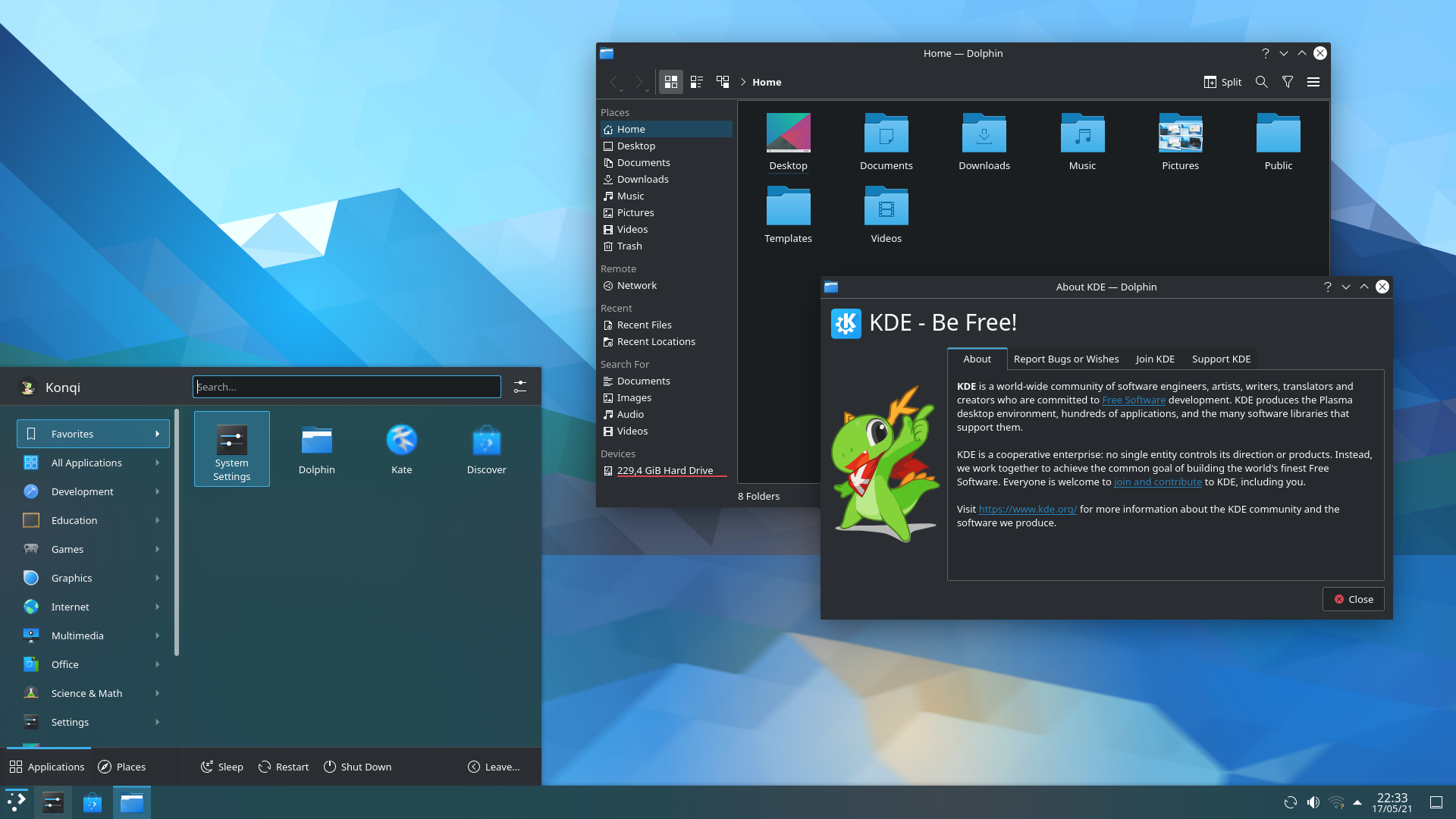
No, it isn't. Modern Linux systems with KDE Plasma are as easy to use as Windows for everyday tasks. The desktop has a familiar layout with a taskbar at the bottom, start menu, system tray and a file manager (Dolphin) that is very similar to Windows Explorer. Browsing, email, documents, films and music work just like you're used to - you'll hardly notice the difference in everyday life. And we're here if you get stuck.
Image example
Do I have to use the terminal (command prompt)?
No, not for everyday use. KDE Plasma has graphical tools for everything you need in everyday life: installing applications via Discover (an app store), updating the system, connecting to Wi-Fi, configuring printers and managing files. The terminal is there as a powerful tool for those who want it, but you never have to open it. Think of it like the Windows command prompt - it's there, but most Windows users have never used it.
Does BankID work on Linux?
Yes, it does. For those who have Mobile BankID, it works exactly the same regardless of which operating system the computer is running, as everything is handled by the browser and a smartphone with the BankID app installed. You log in to the bank, the Swedish Tax Agency, 1177 or other e-services via the browser on your Linux computer and verify by scanning a QR code with your phone. In fact, banking on Linux can be considered safer due to the lower risk of malware and keyloggers. Unfortunately, BankID stopped its native Linux support back in 2014, so if you need the BankID application on your computer, you will need to have a separate Windows installation, either on a separate disc/partition (like on Desktop Gamer) or on a virtual machine from within Linux.
Can I use Microsoft Office?
There are several good options. LibreOffice comes pre-installed and opens Word, Excel and PowerPoint files. For the vast majority of documents, it works excellently, although complex formatting can sometimes differ marginally. Microsoft Office Online (via the browser) provides access to Word, Excel and PowerPoint for free via Microsoft account and looks just like the desktop version. Google Docs, Sheets and Slides are also available for those who prefer it. For most home users, these options cover all needs.
Can I run my Windows programmes?
Specific Windows software cannot always be run directly, but tools such as Wine and CrossOver can run many Windows programmes in Linux. Browser-based services (webmail, social media, banking, streaming) work identically regardless of the operating system. Most everyday applications also have excellent Linux alternatives. Examples of common ones include GIMP/Krita (image editing), Kdenlive (video editing), Thunderbird (email) and VLC (media player) - all free.
Can I play computer games?
Yes, gaming on Linux has improved dramatically thanks to Valve's Proton/Steam Play and the success of Steam Deck (running Linux). Over 90 % of the most popular Steam games now work on Linux via Proton, and any difference in performance is usually within 5-10 % compared to Windows, sometimes for the better. Single player and co-op games generally work fine. The important limitation: some multiplayer games with kernel-level anti-cheat systems (e.g. Valorant, Fortnite) do not work on Linux. The ProtonDB.com website provides detailed information on which games work. Desktop Gamer also comes with Windows on a separate disc for those games that do not yet support Linux. Guide: Playing in Linux →
Is my printer and scanner working?
Printer compatibility has significantly improved. HP printers have the best Linux support and often work out of the box. Brother also has good support with downloadable drivers. Modern "driverless" printers that use IPP Everywhere or AirPrint generally work well. Canon and Epson can be more hit-or-miss. For scanning, a USB connection works better than wireless. A pre-configured computer comes with printer drivers pre-installed – you connect the printer and it should be found automatically. Please contact us before purchasing if you are unsure about your printer model.
Do Netflix, Spotify and Swedish streaming services work?
Yes, it does. Netflix, Disney+, Amazon Prime Video, HBO Max and Spotify all work in the browser. Spotify also has a dedicated Linux app. SVT Play, TV4 Play and other Swedish streaming services are fully HTML5-based and work seamlessly in Firefox or Chrome. A little tip: Netflix can be limited to 720p in Firefox but works in 1080p in Chrome.
Do Swedish government services (Skatteverket, 1177, Försäkringskassan) work?
Yes, they are. All these services are web-based and work in standard browsers. Login is via BankID, read more about this in the corresponding question. The Swedish Tax Agency's e-declaration, 1177 Vårdguiden and all the Swedish Social Insurance Agency's e-services work without problems from a Linux computer.
Can I go back to Windows if I am not satisfied?
Yes, absolutely. A hard drive can always be reinstalled with Windows. There is nothing irreversible about using Linux - your files can be copied to an external hard drive and you can install Windows at any time.
Why pay for a Linux computer when Linux is free?
You pay for the hardware, guaranteed compatibility, professional configuration, support and peace of mind. A pre-configured Linux computer means everything works out of the box - Wi-Fi, audio, graphics, printers - without you having to troubleshoot drivers yourself. It also includes pre-installed software, VPN, disc encryption and access to Swedish customer service. Think of it as the difference between buying a pre-built bike versus buying the parts and assembling it yourself.
Can I get Linux on my old computer instead?
Yes. We offer PC conversion as a service - you send your computer to us and get it back fully configured. Good for the environment and your wallet.
After the purchase - getting started
How do I install programmes?
KDE Plasma has Discover – a graphical app store that works much like Google Play or the App Store. You search for the application you want, click "Install," and it's done. Discover manages applications from the system's official package repositories as well as Flatpak (via Flathub), which offers thousands of applications. You never need to download installation files from websites. This is actually safer than the Windows model, as all applications come from verified sources.
What are Flatpak, Snap and AppImage?
These are different ways of packaging and distributing applications in Linux. Flatpak is the most common format and integrates directly into Discover - it packages applications in isolated environments (sandboxes) for extra security. AppImage is a portable file that can be run directly without installation. Snap is Ubuntu's format and works similar to Flatpak. In practice, you only need to use Discover - it handles the formats for you automatically without you having to think about it.
How do I update the system?
I Discover, there's an "Updates" tab that shows available updates for the entire system and all installed programs at once – unlike Windows, where each program is updated separately. You click "Update all" when it suits you. No forced restarts, no "Please wait while we configure updates" screens, and no interruptions in the middle of your work. Most updates don't even require a restart. It's up to you when and if updates are applied.
Where are my files? The file system looks different.
Your personal files are located in the Home folder, which contains subfolders such as Documents, Pictures, Downloads, and Music – much like in Windows. In the Dolphin file manager, you'll see "Home" in the left-hand sidebar, and USB devices and external hard drives will appear automatically under "Devices" in the same sidebar. Linux does not use drive letters like C: and D:, but in practice, you will never need to think about the underlying directory structure.
Which Linux programmes are equivalent to my regular Windows programmes?
Here are the most common equivalents: Microsoft Office → LibreOffice (or Microsoft Office Online in the browser). Photoshop → GIMP. Outlook → Thunderbird. Windows Media Player → VLC Media Player. Notepad → Kate. Paint → Chalk. Movie Maker → Kdenlive or OpenShot. Explorer → Dolphin (KDE's file manager, often considered better than Explorer). All these programmes are free and available through Discover.
How do I connect my phone to my computer?
USB file transfer works in the same way as you are used to. In addition, KDE Plasma has a unique advantage: KDE Connect. It's a built-in feature that wirelessly connects your Android phone to your computer, provided your computer has Wi-Fi or Bluetooth. You can transfer files, synchronise notifications, share clipboards, control the media player remotely and even reply to SMS from your computer. Just install the KDE Connect app from Google Play on your phone.
How do I back up my files?
Two types of backup are recommended. Timeshift creates system restore points - if something goes wrong, you can restore the system to a previous working state (similar to System Restore in Windows). Déjà Dup or Back In Time copies your personal files (documents, photos, music) to an external hard drive or network storage. The best combination is Timeshift for the system and Déjà Dup for personal files.
Where can I get help if something doesn't work?
The big advantage of a pre-configured computer from us is that you have access to Swedish customer support - you can call or email instead of searching forums. Beyond that, there are plenty of resources: the distribution's official forums and wiki, Reddit groups like r/linux4noobs, KDE Community forums for Plasma-specific questions, and Swedish communities like the SweClockers Linux forums.
Privacy and security
Is Linux really safer than Windows?
Yes, for several structural reasons. Linux uses strict separation of user and administrator rights - programs cannot make system changes without your explicit password authorisation. Software is installed from verified package repositories instead of being downloaded from random websites (the most common source of malware in Windows). Open source means that thousands of developers review the code continuously. In addition, Linux's low market share on the desktop makes it an unprofitable target for malware. Linux also doesn't have espionage built into the system (see next question). However, no platform is invulnerable - your browser and online habits are still the most important factors.
Does Linux spy on me like Windows does?
No. Windows collects mandatory "diagnostic data" – hardware information, system events, error reports, and usage patterns – which cannot be completely disabled. With Windows 11, telemetry has been further expanded with AI features and Copilot. Most Linux distributions collect zero telemetry data by default. As the code is open source, hidden tracking features would be immediately discovered and exposed by the community. Important to note: the Linux operating system itself does not track you, but applications you install (e.g. Chrome, Discord) may still collect data – which is why we recommend privacy-friendly alternatives like Brave.
Do I need antivirus software?
No, for home use, dedicated antivirus software is not required. Linux architecture with permission system (files are not executable by default), centralised package repositories and low incidence of malware makes antivirus software unnecessary for desktop users. Instead, the most important security measures are to keep the system up-to-date, only install programmes from trusted sources (Discover/Flathub), use strong passwords and be careful with browser downloads.
What is disc encryption and why do I need it?
Disk Encryption (via LUKS) encrypts the entire contents of your hard drive with AES-256 encryption - the same standard used by banks and governments. In practical terms, this means that if your computer is stolen or lost, no one can access your files, photos, documents or passwords without your encryption password. With modern processors, performance is barely noticeably affected. Without encryption, anyone who gains physical access to your hard drive can read everything - no matter how strong your login password is.
What happens if I forget my encryption password?
Then, unfortunately, it's game over. If you forget your encryption password and don't have a backup, your data is permanently inaccessible. There's no backdoor, no "forgot password" option, and no customer service that can unlock the drive – that's the whole point of encryption. However, LUKS supports up to 32 password slots, so you can add a backup password for extra security. Our advice: choose a strong but memorable passphrase (preferably four–five random words) and store the password securely in a separate location.
Do I need a VPN?
Linux protects your computer, but not your network traffic. Without a VPN, your ISP can see which websites you visit. A VPN encrypts all internet traffic between your computer and the VPN server, so neither your ISP nor anyone on the same network can see what you're doing online. However, your VPN provider may be able to, so it might be worth considering which of them you trust the most (or least). VPNs are especially important on public Wi-Fi networks (cafés, airports, hotels). Our computers come with VPN pre-installed - you just need to switch it on.
How does Linux handle security updates compared to Windows?
You decide when to install updates - no forced restarts in the middle of a presentation or overnight. The update manager notifies you when new updates are available, and you choose when to install them. Most updates don't even require a reboot. The entire system and all installed applications are updated through a single update manager, instead of each application updating itself as in Windows. Security updates are released quickly by the open source community - often faster than for proprietary systems.
Good to know
Transferring data from your old Windows computer
Linux can read Windows formatted storage devices (NTFS) without problems. The easiest migration method is to copy the files to a USB stick or external hard drive. Browser bookmarks and passwords are automatically synchronised if you use the same browser account (e.g. Firefox Sync or your Google account).
KDE Plasma is more customisable than any other desktop
KDE Plasma is the most customisable Linux desktop. You can change the theme, icons, colours, fonts, window decorations, panel layouts and desktop widgets - all through System Preferences. There are even themes that make KDE Plasma look exactly like Windows 10 or Windows 11. But the important thing for beginners: you don't need to customise anything at all - the default setting works just fine and is already familiar to Windows users.
KRunner - a hidden superpower
Press Alt+Space to open KRunner, a universal search box. From there, you can launch programs, search for files, do mathematical calculations, convert units, search the web, and much more. It's like a faster and more powerful version of the Windows search bar. A feature that few new users know about but which is quickly becoming indispensable in everyday life.
Do not run commands you do not understand
If you're seeking help online and someone suggests you type a command into the terminal – don't run it unless you understand what it does, especially if it starts with "sudo" (which grants administrator privileges). Malicious commands appear in forums and comment sections, just like with other operating systems. If in doubt, contact our customer service instead.
Graphics cards: AMD performs better than NVIDIA on Linux
AMD and Intel graphics cards have excellent support with open drivers built directly into the Linux kernel. NVIDIA requires proprietary drivers which work but have historically caused more problems. A pre-configured computer comes with the correct drivers already installed, but it's good to know for future upgrades.
Windows 10 has come to an end - Linux is the alternative
With Windows 10 support having ended and Windows 11"s even more invasive behaviour and hardware requirements excluding many older computers, interest in Linux has increased significantly. Linux works excellently on older hardware and KDE Plasma is surprisingly resource-efficient despite its range of features. A computer that is "too old" for Windows 11 can be given new life with Linux – without compromising on either performance or security.
Buy & Delivery
Payment, delivery, right of withdrawal, and warranty.
Buy & Delivery
What payment methods can I use?
You can pay with Swish, Klarna (invoice or instalment payments), card, or Bitcoin via BTCPay. Choose what suits you at checkout – all prices include VAT.
What is the delivery time?
Normally 5–10 days. Each unit is configured and tested by hand in Hedemora before being shipped, which is why it takes a few days. Shipping is trackable.
Can I collect in person?
Yes. You are welcome to collect your order from us in Hedemora, Dalarna. Please get in touch so we can book a time – many people feel it offers extra peace of mind to meet us.
What cancellation rights do I have?
You have a 14-day right of withdrawal for distance purchases according to the Distance Contracts Act. Read the full terms and conditions on the page. Shipping and cancellation.
What guarantee applies?
The hardware has a warranty and you always have the right to make a complaint according to the Consumer Purchase Act. Read more about what is included on the page Warranty.
Do you deliver outside of Sweden?
Primarily, we sell within Sweden, with Swedish support and Swedish terms. Do you wish to order from another country? Contact us Then we'll see what we can do.
Support & Help
The help included — and how to reach us.
Support & Help
What support is included when I purchase?
Swedish support via telephone and email is included, along with a handbook in Swedish. You can reach us on 010-10 11 222, Monday–Friday. We respond without technical jargon.
What do I do if I get stuck?
Call or email us first – we can resolve most issues immediately. If you need further assistance, we offer personal remote assistance where we will help you remotely, step by step.
Do you offer training for beginners?
Yes. We are holding a beginners' course in Linux and privacy technology where you will learn the basics at a relaxed pace, with a real teacher instead of videos.
What happens in case of a hardware failure?
If the fault is covered by the warranty, send the unit in and we will repair it free of charge and return it. Read more about how to do this on our support page.
Can you help me get started after the purchase?
Absolutely. The device comes ready to use, but if you'd like help transferring data, setting up apps, or simply getting started with confidence, we're here – in Swedish.
Didn't you find the answer?
Get in touch, and we'll help you out – honestly and without sales pressure. We'll answer in Swedish, without technical jargon.
 Swedish
  English